

Lower Back Rest - Office Chair Component

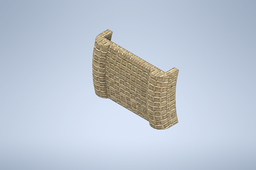
This is a step by step tutorial for constructing the lower back rest cushion piece of the office chair that will be attached to the back rest skeleton component. As a result, the curvatures and some features of this component will be referencing the skeleton piece.
Visualization and Modelling
M. Said Jiddan Walta
2106718256
-
Step 1: Basic Sketch
When we imagine a cushion piece, we imagine it to have a concave component on the inside to make it more comfortable. As we provided space in the skeleton piece's sides to attach the cushions too, we also need to provide some space to attach on the cushion piece.
With these parameters in mind, we match the dimensions of those in the skeleton when we draw the basic (top view) sketch of the cushion:

The longer extrusions are for attaching to the skeleton piece, while the flatter and wider extrusions serve as predecessors to the concave-like cushion.
-
Step 2: Setting Up Planes for Lofting
Since the shape of the seat that we designed aims to be ergonomic, it will be vertically curved, so we cannot simply extrude the sketch upwards.
To maintain a curved solid going up, we need to create multiple sketches at different elevation levels and at different horizontal positions to create a curve-like progression.
Begin by creating a plane offset from the base XZ-plane, with a height offset approximately the total height of the lower back section of the seat.

On this plane, copy and sketch the existing base sketch.

To create a curve-like progression in appearance, move this new sketch sideways as desired to form horizontal position difference between the top and bottom sketch using the 'Move' feature while sketching.

Select all lines of the sketch, swap to the base point feature and select an arbitrary point outside of the sketch and begin adjusting the position as desired.
-
Step 3: Duplicating Sketches and Planes
Two planes at the top and bottom is not enough to provide information to Inventor that we want a curved progression as the sketches go up.
To combat this, we need to create more planes and more duplicate sketches with different positions.


Adjust the alignment of these sketches as needed to create a curved progression as seen above. More planes (and sketches) will result in a more elaborate curve, but do so as required to create a curve that is at least similar to the curve designed at the skeleton piece.
-
Step 4: Lofting
Once all the necessary sketches are set up, we can loft to create a new solid using the 'Loft' feature.

Select the sketches either from top to bottom or bottom to top in order to create a new solid.
-
Step 5: Filleting as Needed
Since this part will make contact with the human body (and needs to be comfortable) we need to fillet the sharp corners accordingly.


Higher fillet radius means a 'softer' mound. Some fillets need to be done before the other, so sometimes some trial and error is necessary.
-
Step 6: Creating Corresponding Holes
As this component will be attached sideways (and the extrusions for attachment is also made) to the skeleton piece, we need to create holes that are corresponding in position and size with those of the skeleton piece.
After measuring the relative positions of the holes along the skeleton piece, try to translate those positions on to the cushion and make a virtual marking however possible.
As we plan to create a hole on a curved surface, we need to guide Inventor about the position and direction of the hole.

Based on where the points are, create a plane that intersects the relative points offset from the XY-plane. On this plane, we will draw a sketch of a straight perpendicular line to define the direction of the holes.

Once the lines have been made around the relative height of the holes, use the 'Axis' feature and select the lines to create a work axis.

Use the 'Point' feature: select the surface and the axis to create a work point where the surface and the axis intersects (the point where we want to have our hole).
-
Step 7: Creating the Holes

With the axis and the point already created, use the 'Hole' function:
Select the work point and the work axis (in this order) and adjust the features based on the one used in the skeleton piece.
With enough depth, the hole will be created on both sides of the feature.
-
Step 8: Plaid Beige (Optional)
As usual, to match the color scheme of the other cushion components, change the surface property to Plaid Beige.


