

Tutorial for Chair Legs

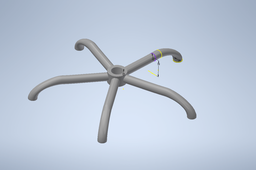
This is an associated step-by-step procedure for the creation of the Chair Legs model component of the Office Chair assembly.
-
Step 1: Circle at Origin

Create a circle sketch at the origin with a diameter equal to the intended individual chair leg diameter. The size of this circle will be consistent with all other circles made.
-
Step 2: Offset Plane for Future Lofting

Create a new plane offset from the origin's XZ plane some small height away.

Create the same sized circle on this new offset plane. This will be used for making the curved leg solid later on.
-
Step 3: Sketching End Point of Leg
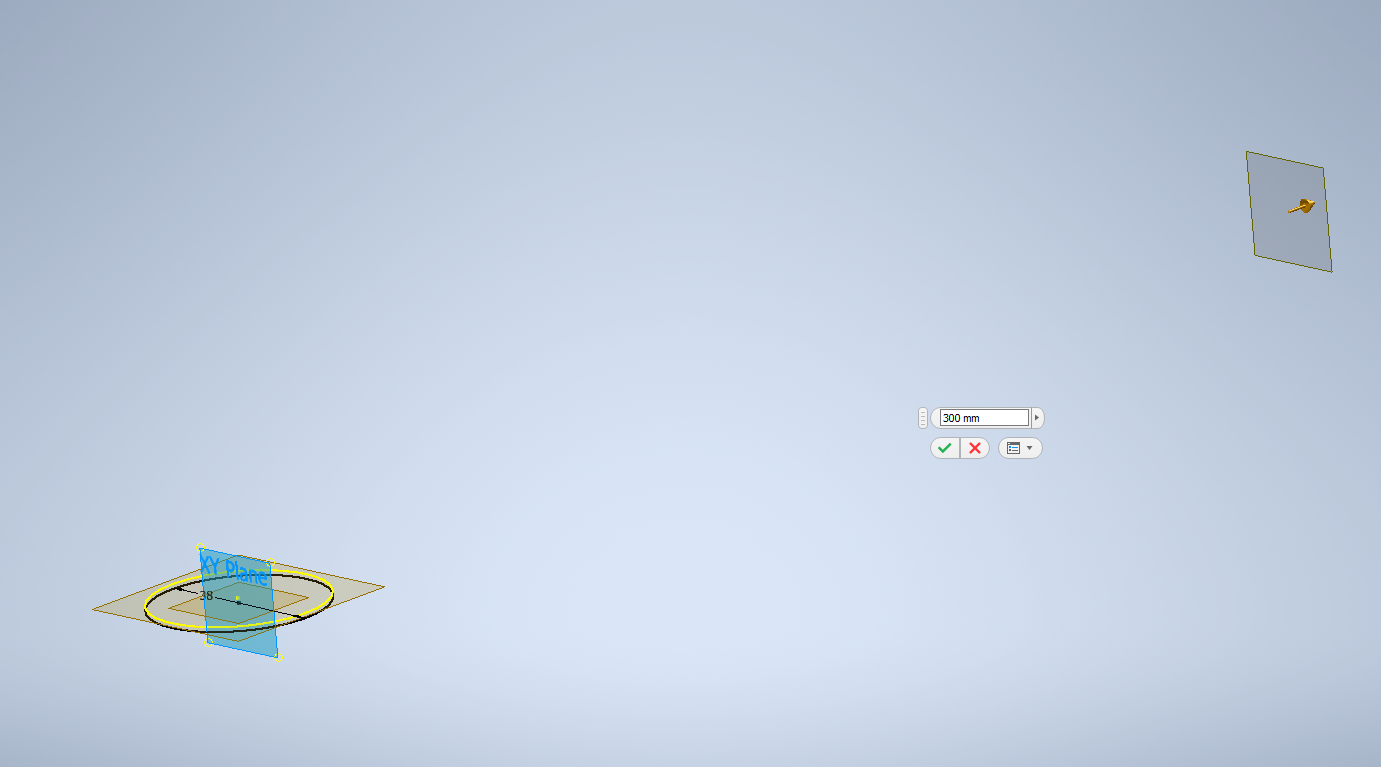
We want to create the point at which the leg will extend to from the bottom, in other words the point where multiple legs will meet at the center.
Create a plane offset from the origin's XY plane some distance away based on the intended leg length. In this scenario we use 300mm.
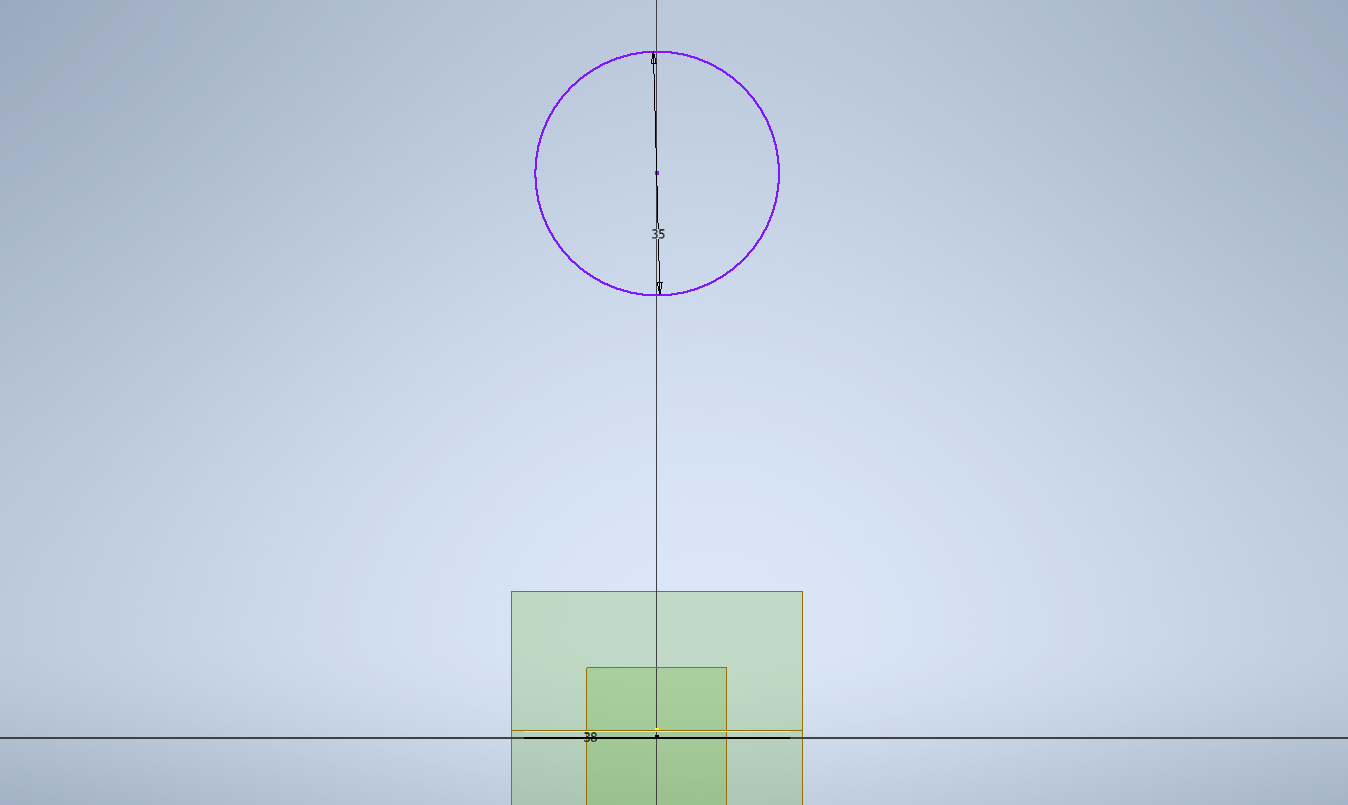
Sketch a circle on this plane, located some height above the original center of the plane to create elevation between the base of the legs with the meeting point at the center. The diameter should still remain the same.
Resizing the plane by dragging its corners to make the sketching more comfortable is possible.
-
Step 4: Sketches for Lofting Steps
Since we plan to use the 'Loft' feature to create the curved leg solid, we need to create more circular sketches along the path we want to have the leg be curved on.
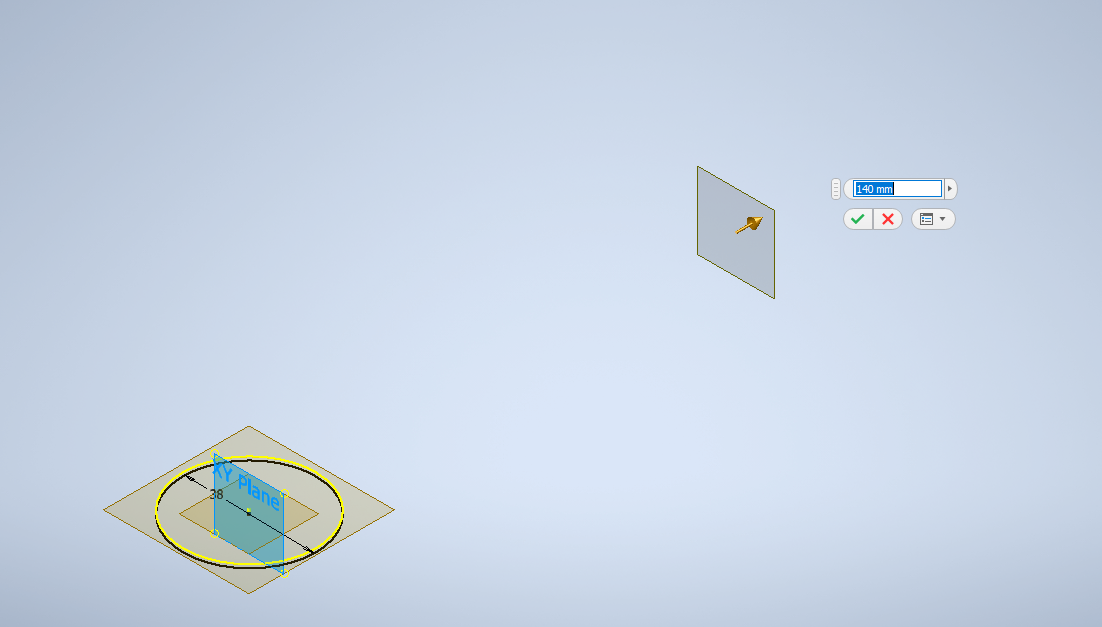
Use the same procedure to create a plane offset from the XY-origin, this time a shorter distance than the previous. Here we use 140mm in comparison to the previous 300mm.
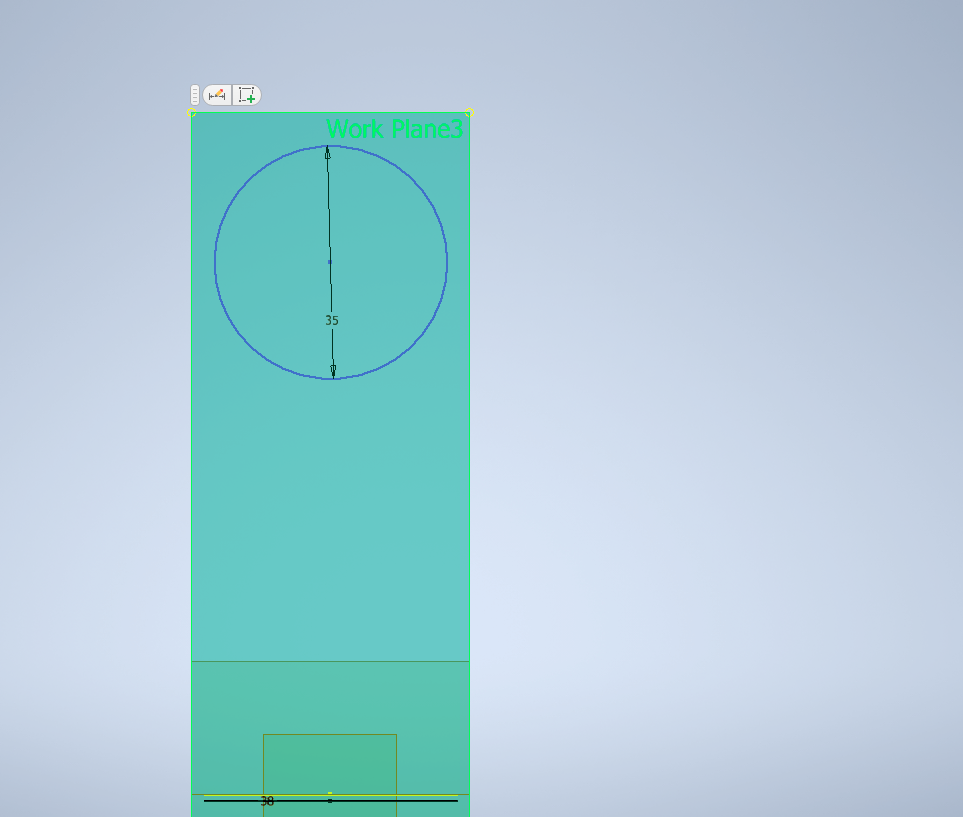
Resize the plane to reach about the height of the previous circle to make it more convenient.
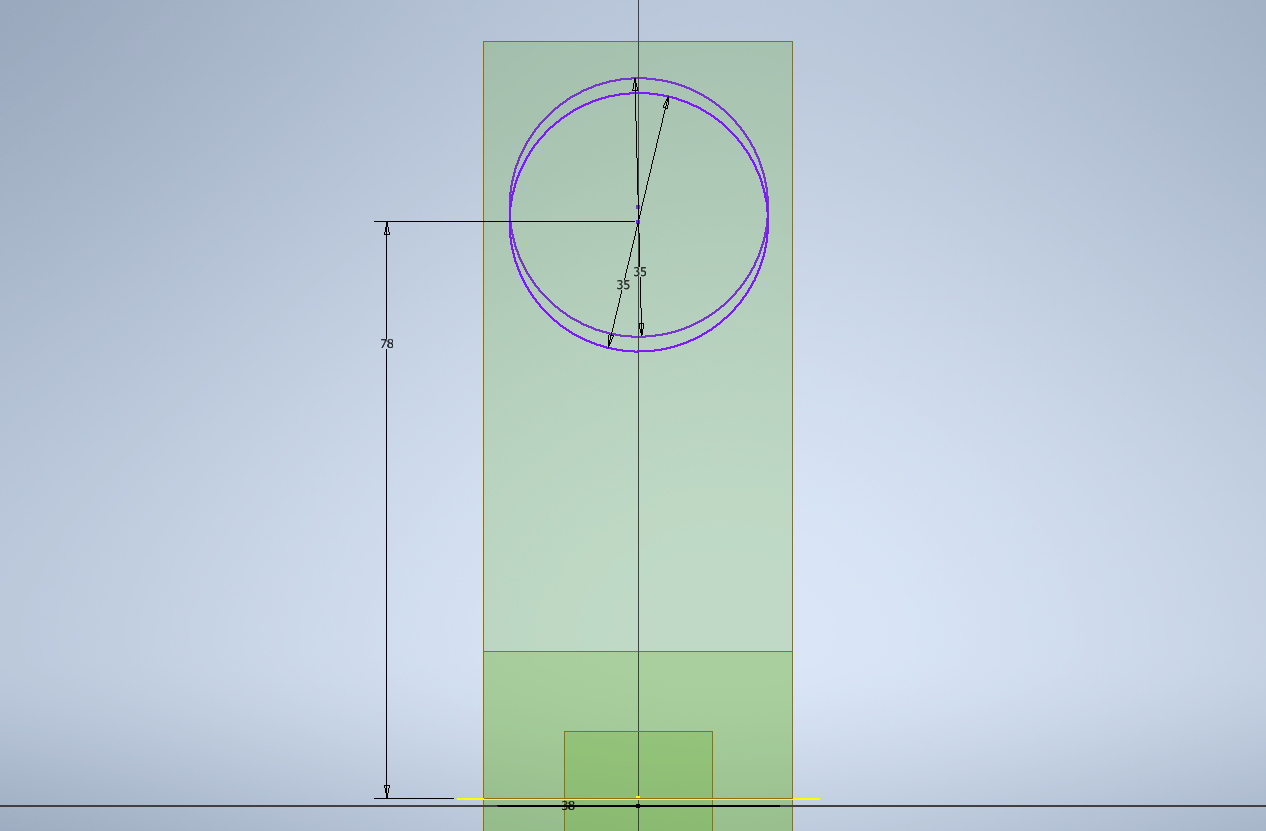
Sketch a circle with a height lower than the one on the previous elevated plane. The height change is arbitrary depending on how much curve is desired.
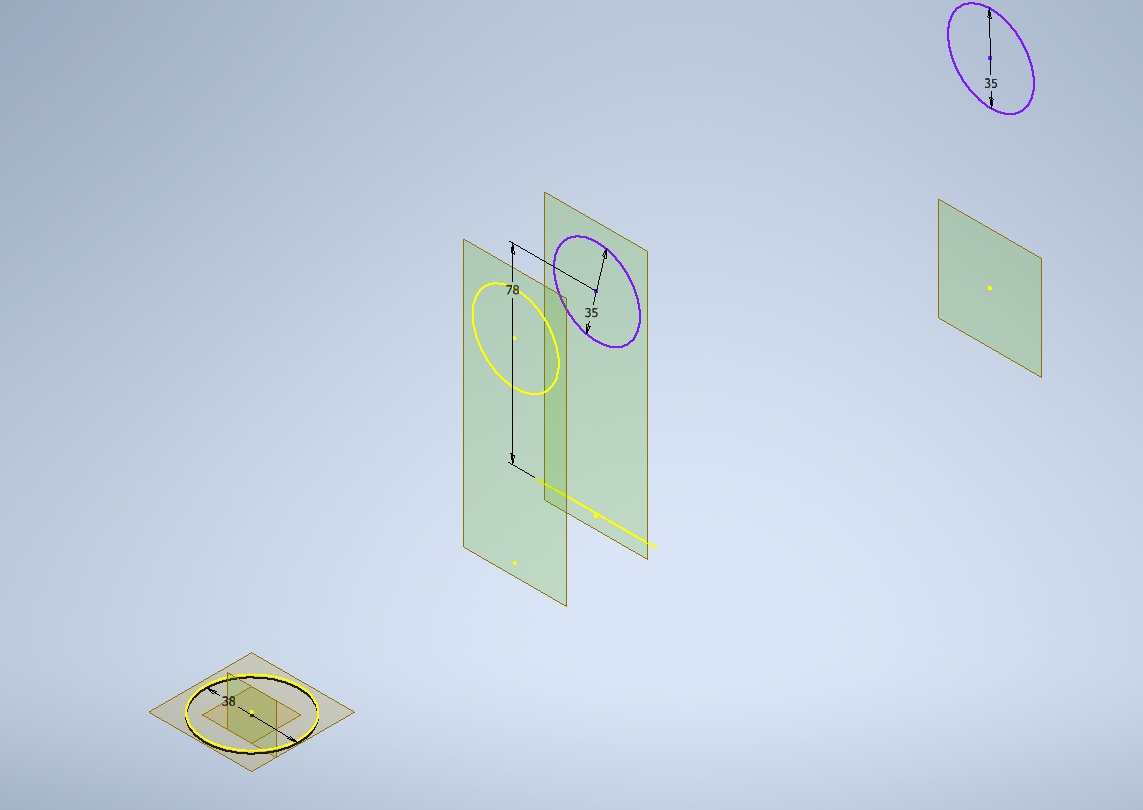
Repeat the same process for as many times as necessary based on the intended curving shape. More elaborate curves may require more planes with more height change between the circles.
-
Step 5: Lofting
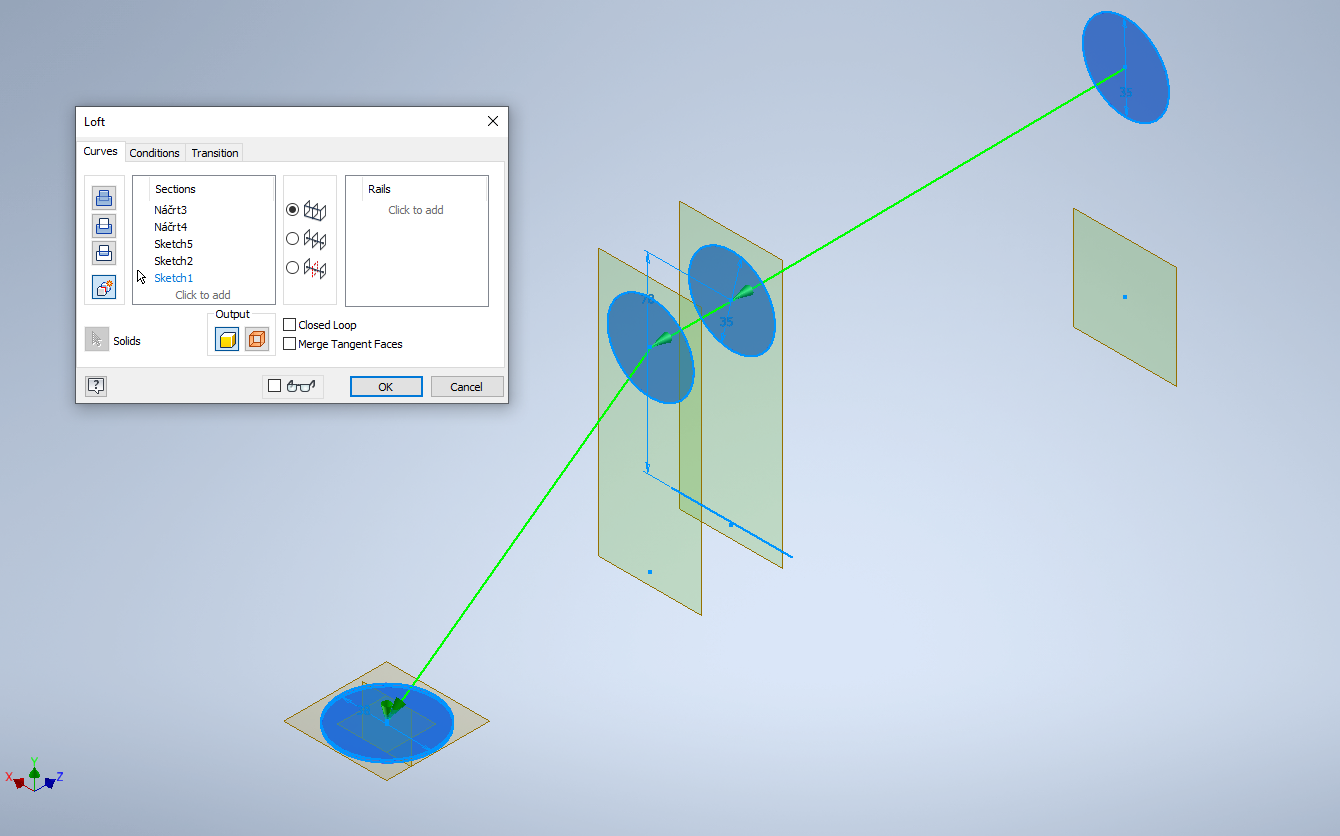
Using the Loft feature, select the 'New Solid' function (lowest from the four selections). Select the sketches that have been created (make sure to make them visible first) in order from the top to the bottom. If it is not in order, the loft may fail to be created.
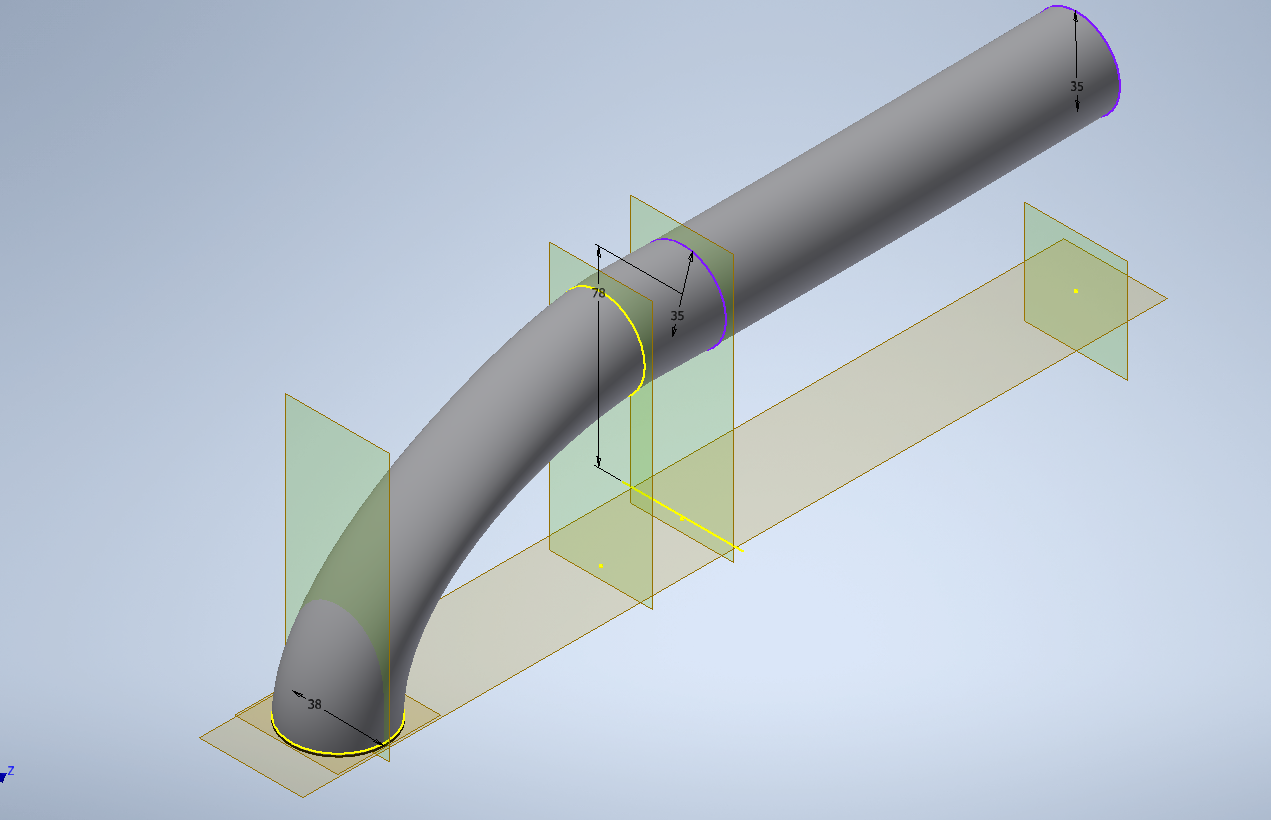
The result should look similar to this.
-
Step 6: Hole for Wheel Mount
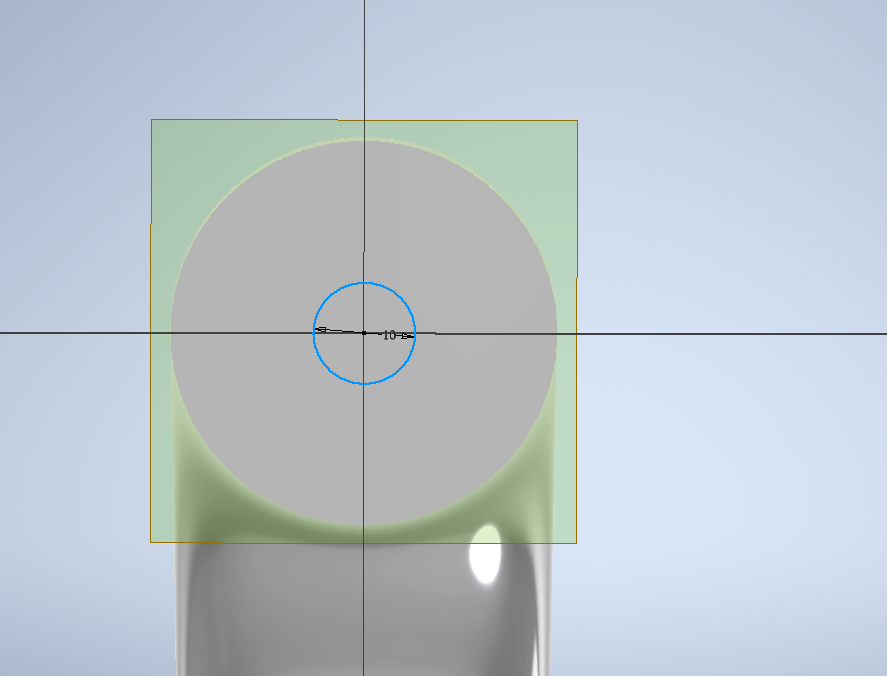
Sketch a small circle with the bottom of the leg as the plane.
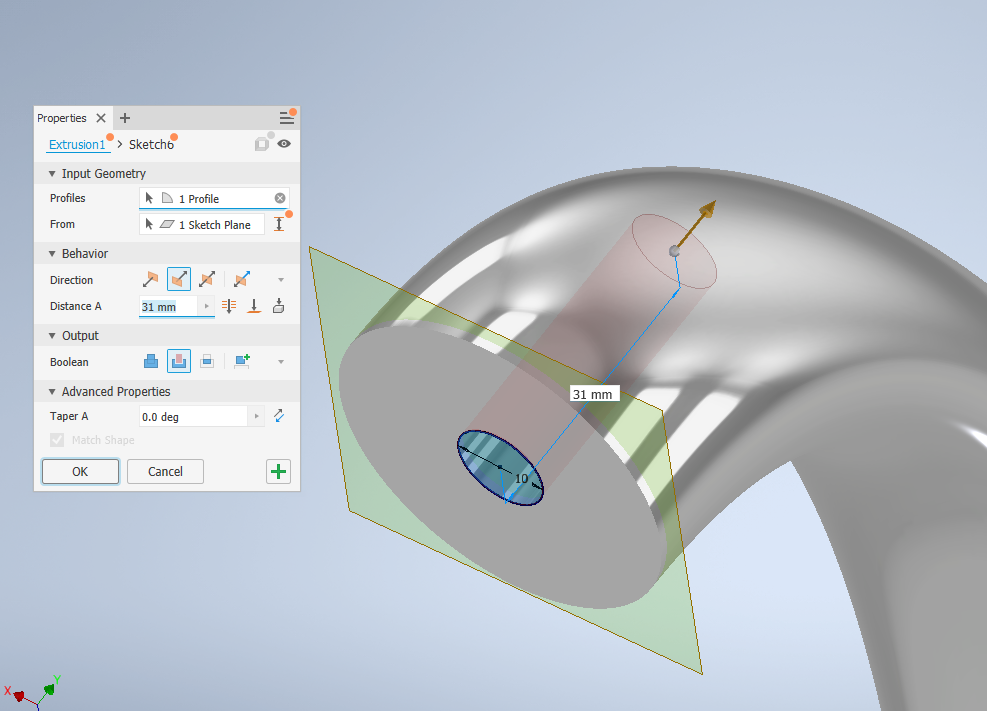
Extrude this circle some height away to create room for the future wheel-mount part.
-
Step 7: Creating Center Piece
Since we wish to create a center piece connecting the lofted leg, we need to create an appropriate plane to sketch the piece first. Our goal is to create a plane parallel to the leg but situated at around the center of the leg height-wise.
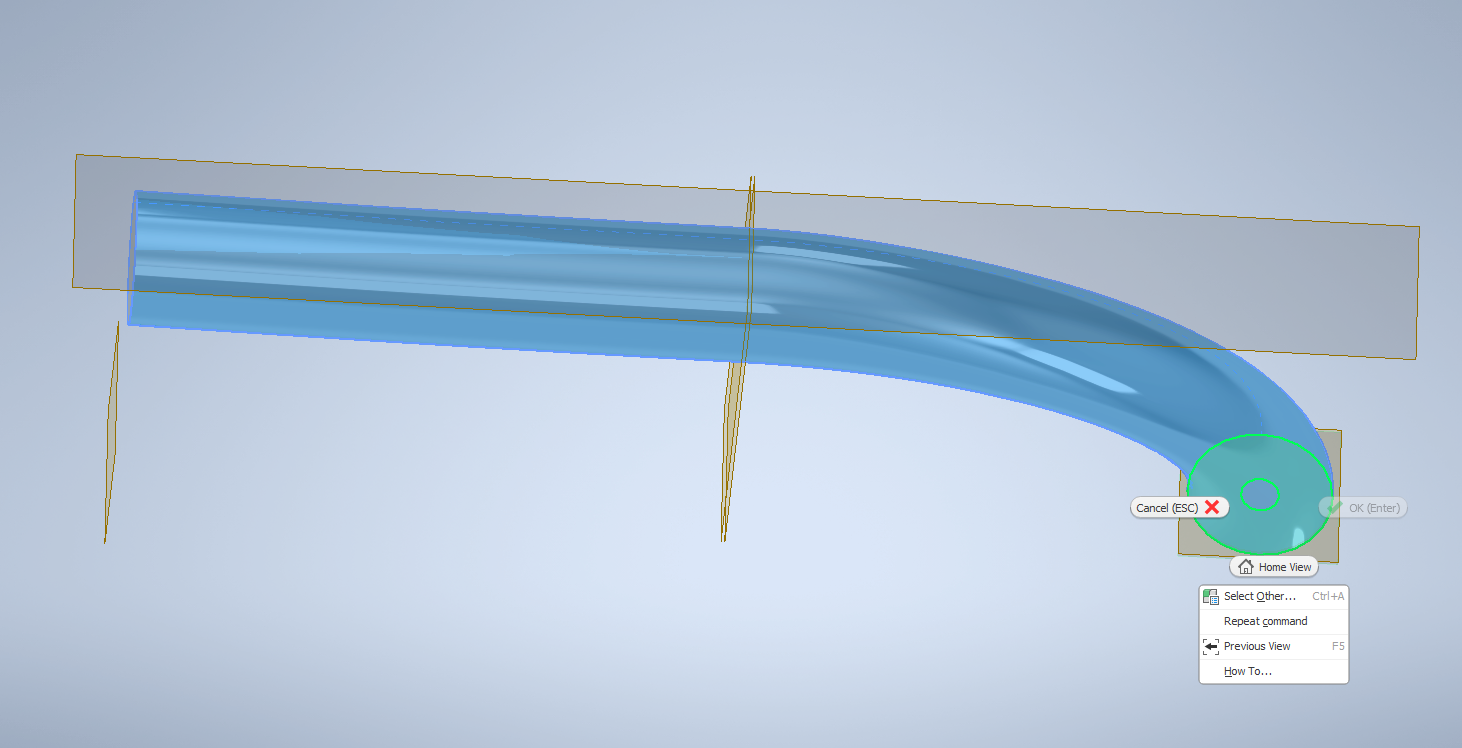
To do this, we can create a plane with the 'Tangent to Surface and Parallel to Plane' feature, selecting the leg first and the bottom plane next. The result will not have a height around the middle of the leg though.
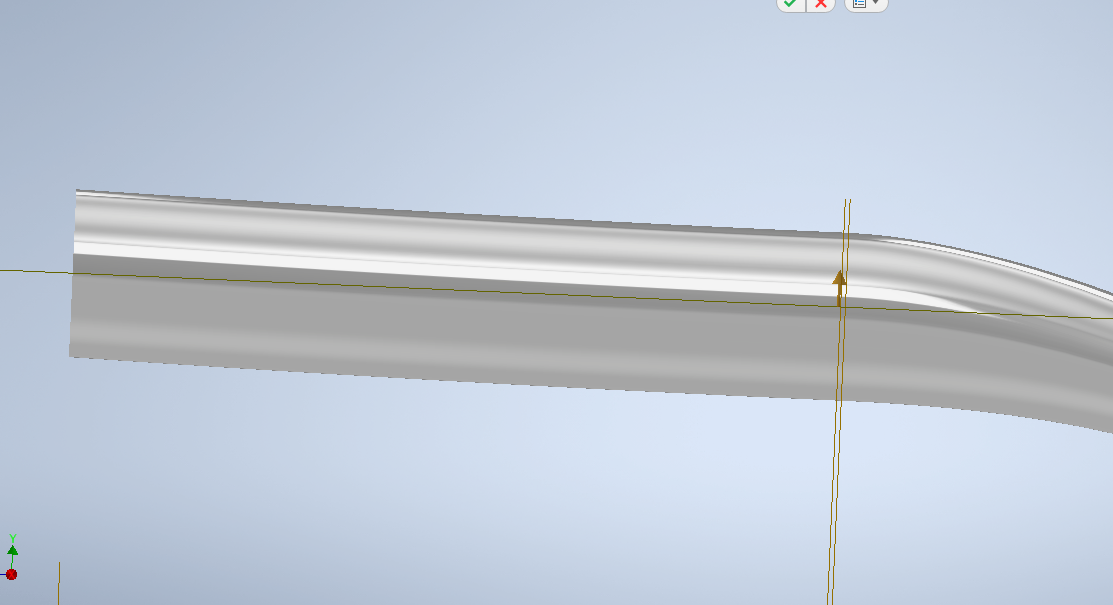
We can readjust the height up to around the middle. Otherwise, we can also create a plane that is offset from the origin XZ plane and readjust its height and its size.
Using this plane, we can sketch a suitable circle to be extruded. The size should at least be large enough to have a circumference equal to around five times the diameter of the leg since we plan to make five legs in total.
-
Step 8: Hole in Center Piece for Vertical Stand
This step is necessary for allowing the legs to be assembled with the vertical stand connecting the seat above.
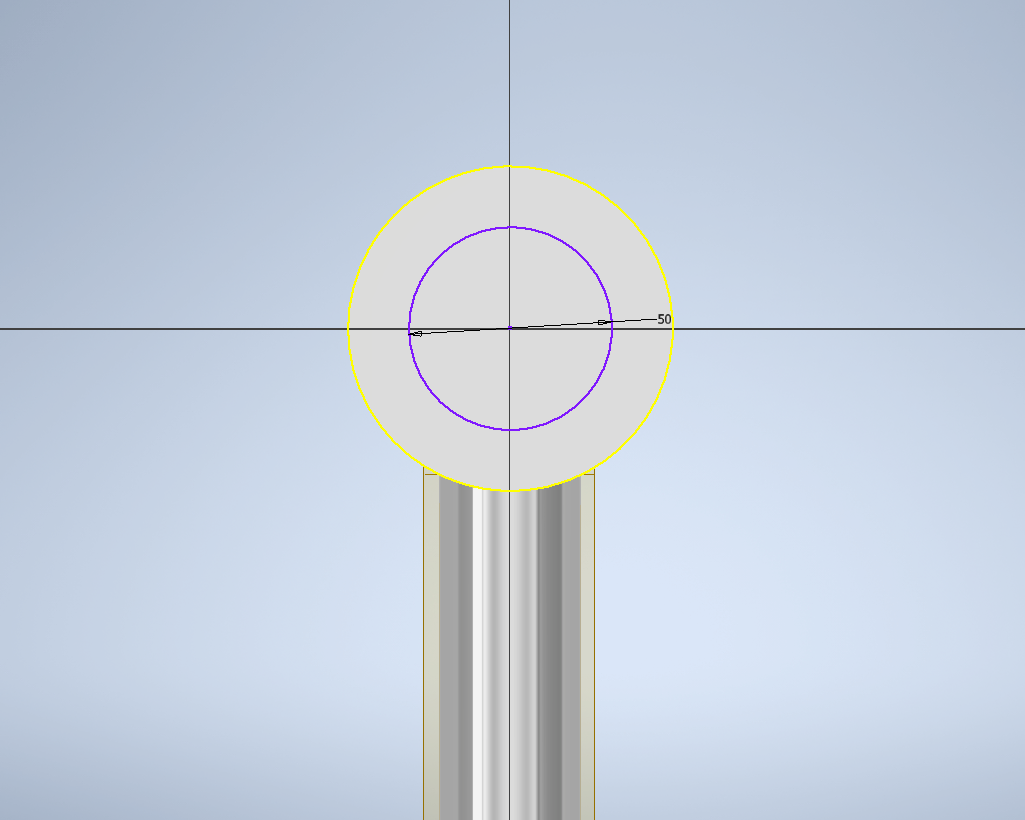
On the center piece that has been created, sketch an ideally large circle with the top as the surface.

Next, start a new sketch on the opposite (bottom) side of the center piece, sketch a circle smaller than the upper part. This part is optional based on the intended shape of the vertical stand bottom. Since our part has a narrowing section on the vertical stand, we need to create a narrowing hole.

Loft using the 'Join' function between the two circles to create a suitable hole.
-
Step 9: Circular Pattern
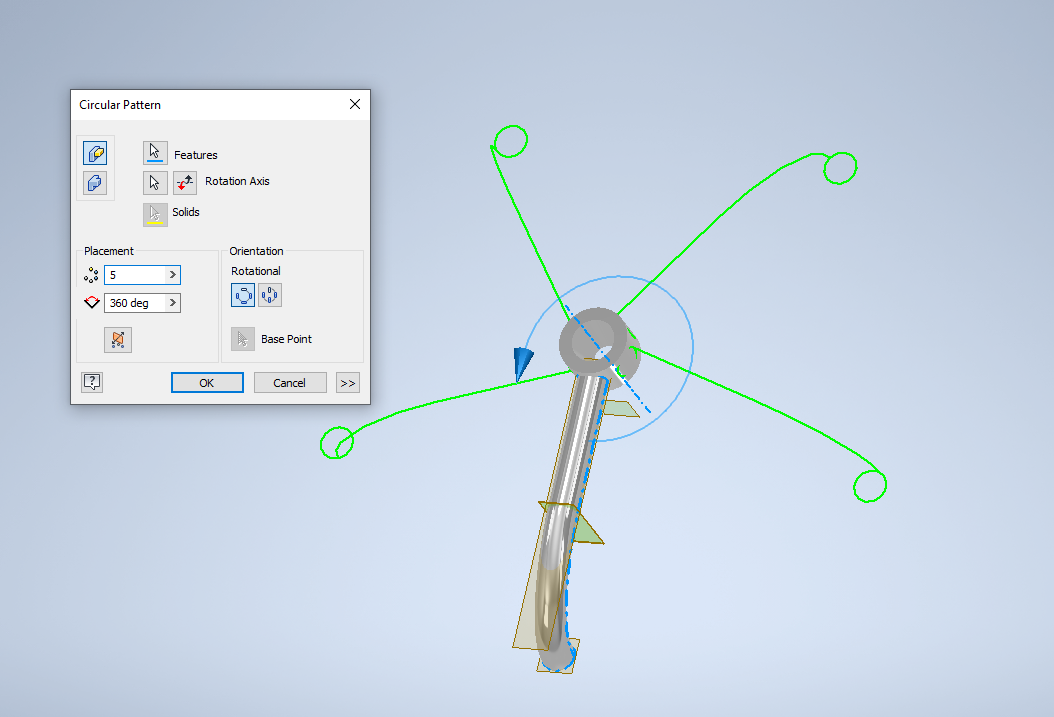
Using the Circular Pattern function, select the Loft (leg) as the feature and select the center piece as the rotation axis.
In the Placement section, enter the intended amount of repetitions along the desired angle of rotation. In this case since we want to create five total revolving legs around the center piece, we use 5 pieces and 360 degrees of rotation.
-
Step 10: Optional Surface Recolor
The legs is complete at this point. However, recoloring the surface for appearance purposes is also optional.

For polished metallic look, Chrome - Polished is an option. For a strictly metallic look, using Steel is default.

