

Unequal Tee Pipe Fitting

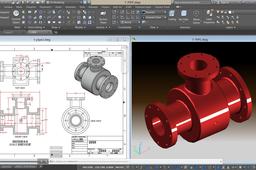
How to create an Unequal Tee Pipe Fitting . Please follow the instruction on the video and use the reference drawing posted below. https://www.youtube.com/watch?v=6VcLylPkyQI
-
Step 1: How to make Unequal Tee Pipe Fitting
1. Setting Up the Workspace
- Open AutoCAD: Launch AutoCAD and start a new 3D drawing.
- Units and Layers:
- Units: Ensure the drawing units match your project specifications (e.g., millimeters or inches).
- Layers: Create separate layers for different components to manage the drawing efficiently.
-
Step 2: Drawing the Main Pipe
Main Pipe Diameter:
- Use the CIRCLE command to draw a circle representing the main pipe's diameter.
- Specify the center point and input the radius corresponding to the main pipe's outer diameter.
Extruding the Pipe:
- Select the circle and apply the EXTRUDE command.
- Specify the length to represent the main pipe's segment.
-
Step 3: Creating the Branch Pipe
- Branch Pipe Diameter:
- Determine the branch pipe's diameter, which is smaller than the main pipe's.
- Use the CIRCLE command to draw a circle on the plane where the branch will intersect the main pipe.
- Positioning the Branch:
- Utilize the MOVE and ROTATE commands to position the branch circle perpendicular to the main pipe at the desired location.
- Extruding the Branch:
- Select the branch circle and apply the EXTRUDE command.
- Specify the length to represent the branch pipe's segment.
-
Step 4: Intersecting the Pipes
- Aligning the Branch:
- Ensure the branch pipe intersects the main pipe at the correct position.
- Use the INTERSECT command to create a 3D solid representing the intersection volume.
- Subtracting the Intersection:
- Apply the SUBTRACT command to remove the intersecting volume from the main pipe, creating an opening for the branch.
-
Step 5: Filleting the Edges
- Smooth Transitions:
- Use the FILLET command with a suitable radius to smooth the edges where the branch intersects the main pipe.
- This step enhances the model's realism and reflects actual manufacturing processes.
-
Step 6: Finalizing the Model
- Union of Solids:
- Select both the main and branch pipes and apply the UNION command to combine them into a single 3D solid.
- Applying Materials and Rendering:
- Assign appropriate materials to the model to represent the pipe's material (e.g., steel or PVC).
- Use the RENDER command to visualize the final model.
-
Step 7: Reference Drawing
For detailed dimensions and fabrication guidelines, refer to standard pipe fitting dimensions, such as those provided in ANSI B16.9 for reducing tees. These standards offer comprehensive tables and diagrams essential for accurate modeling.
-
Step 8: Additional Resources
For further learning and visual guidance, consider watching the following tutorial:
Unequal Tee Pipe Fitting ✐ AutoCad 3D ✐ Mechanical Exercise - YouTube

