Learn about the GrabCAD Platform
Get to know GrabCAD as an open software platform for Additive Manufacturing
Visit our new homepage
Home
Control
Shop
Streamline Pro
Partner Program
Print
Community
Log in
Library
Challenges
Groups
Questions
Tutorials
Engineers
Blog
Log in
Learn from thousands of free Tutorials.
New user?
Join the community
or
log in.
Tutorials
Most liked this month
Recent
Most liked
Most viewed
Most commented
This week
This month
All time
Category
Design & CAD
Modeling
Drafting
Assemblies
BOM
Dimensioning / Tolerancing
Translations
Manufacturing & CAM
3D Printing
Tooling
NC Machining
Composites
Measurement / Inspection
Simulation & CAE
FEM
CFD
Kinematics
Process Simulation
Engineering Fundamentals
Theory
Process
Standards
Other
Software
Snagit
Alibre Design
ArchiCAD
AutoCAD
AutoCAD Electrical
Autodesk 3ds Max
Autodesk Alias
Autodesk Inventor
Autodesk Maya
Autodesk Revit
Autodesk 123D
BricsCAD
Bentley MicroStation
BlenderCAD
BobCAD-CAM
CATIA
Delmia
DraftSight
FreeCAD
Femap
Fusion 360
Geomagic Design
IronCAD
JT
Kompas-3D
KeyCreator
KeyShot
Lagoa
Luxology
Mastercam
Moi3D
NX Unigraphics
OBJ
Onshape
OpenSCAD
Parasolid
Powermill
Powershape
Pro/Engineer Wildfire
PTC Creo Parametric
PTC Creo Elements
Rhino
SpaceClaim
SOLIDWORKS
solidThinking Evolve
Solid Edge
SolidFace
STEP / IGES
SketchUp
STL
TopSolid
TinkerCAD
T-Flex CAD
TurboCAD
VectorWorks
ViaCAD 3D
VRML / WRL
ZW3D
GrabCAD Print
Rendering
GrabCAD Community
GrabCAD Workbench
Text file
3D Manufacturing Format
Cinema 4D
Other
Skill level
All levels
Beginner
Intermediate
Expert
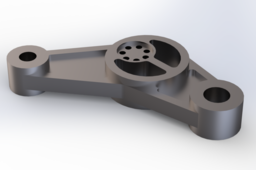
SolidWorks Tutorial: Modeling a Beginner's Practice Part (Exercise 1)
Anahid Ghazavi
in
Modeling
7
1
Beginner
Short description for tutorial list: A simple, step-by-step SolidWorks tutorial ideal for beginners learning basic sketching, extruding, and cutting features. . . . Hello CAD enthusiasts! This tutorial guides you through modeling a simple mechanical part in SolidWorks. It’s perfect for beginners learning core functionalities. Key Skills Covered: Basic Sketching (lines, circles) Extrude Boss/Base & Extrude Cut commands Applying dimensions and constraints
SOLIDWORKS
cad
practice
3d modeling
mechanical design
exercise
beginner
tutorial
solidworks
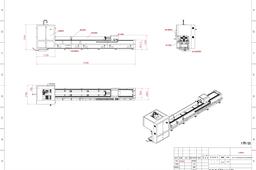
Fiber optic laser pipe cutting machine CAD
Liu Bruce
in
Modeling
2
1
Beginner
Yihai laser cutting machine CAD
AutoCAD
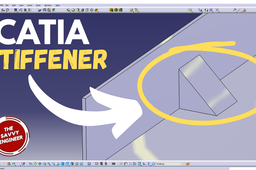
CATIA | How to Create a Stiffener Like a Pro
The Savvy Engineer
in
Modeling
2
0
Beginner
Learning how to create a stiffener in CATIA is an essential skill for designers and engineers who work with structural, mechanical, or aerospace components. A stiffener is a reinforcing feature added to a part to increase strength and rigidity without significantly increasing weight. Because CATIA is widely used in industries where performance and efficiency matter, understanding how to model stiffeners correctly can greatly improve both design quality and professional competence.
CATIA
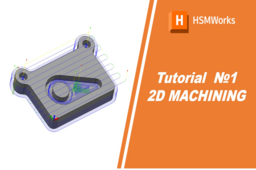
HSMWorks tutorial №1 - 2D Machining
Omellejr
in
NC Machining
1
0
Beginner
In this tutorial you will learn how to machine the part through the following steps: ▸ Facing ▸ Contouring ▸ Pocket Machining ▸ Counterboring ▸ Drilling ▸ Tapping ▸ Post Processing Before proceeding, please open the part "Tutorial1.SLDPRT" into HSMWorks, by choosing "Open" from the File menu, and then browsing to the file. 𝐃𝐢𝐬𝐜𝐥𝐚𝐢𝐦𝐞𝐫: This tutorial is a representation of the original Help tutorial with the HSMWorks software suite. This guide is intended for educational purposes and to make the features and tools of HSMWorks more accessible to the general public. More information about purchasing, installing, and using HSMWorks can be found on the official website: https://www.autodesk.com/products/hsmworks
cam
milling
solidworks
nc
2d machining
hsmworks
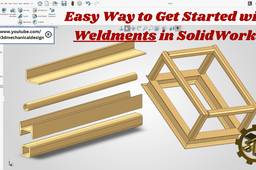
⚡Master SolidWorks Weldments: Step-by-Step Tutorial for Beginners
Peter CAD
in
Modeling
1
0
Beginner
In this SolidWorks tutorial, you will learn the easy way to get started with solidworks weldments. Whether you are new to structural design or looking to improve your CAD skills, this step-by-step guide covers everything you need to know about creating frames, structural members, and custom profiles.
SOLIDWORKS
solidworks tutorial for beg
solidworks
solidworks tutorial
How to publish a Solidworks assembly on GrabCad without errors, missing parts or broken references
MechVision3D
in
Modeling
1
0
Intermediate
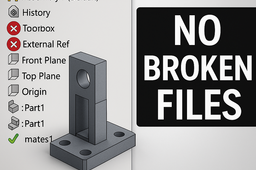
Many SolidWorks assemblies shared on GrabCAD fail when opened: missing parts, rebuild errors, broken Toolbox components, or unstable mates. This tutorial explains a practical and proven workflow to prepare and publish SolidWorks assemblies that open correctly on any system, even on a fresh SolidWorks installation. Covered topics: How to correctly handle Toolbox components How to detect and block external references How to avoid rebuild errors and missing parts How to stabilize mates before publishing How to prepare assemblies for safe reuse by others The focus is not on theory, but on real problems encountered when sharing assemblies and how to eliminate them before uploading. If you want your models to be reliable, reusable, and well-received by the community, this workflow is essential.
SOLIDWORKS
toolbox
assembly
grabcad
solidworks
CAD Modelling Challenge #03
SpareGear CAD & Design | SG-XXIV
in
Modeling
1
0
Intermediate
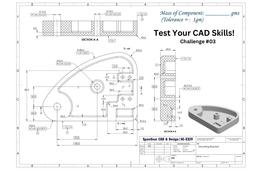
🧩 Test Your CAD Skills Take this CAD challenge and model the component from the given engineering drawing in SolidWorks. Try it yourself first then follow the tutorial to compare your approach.
SOLIDWORKS
mechanical
drawing
cad
solidworks
SolidWorks - Lock & Unlock Sketch Relations
MechVision3D
in
Other
1
0
Beginner
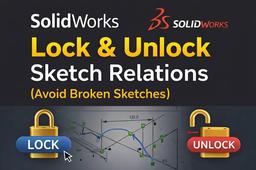
In complex or parametric models, sketch relations can easily break during edits. In this short SolidWorks tutorial you’ll learn: • How to lock sketch relations • When to unlock them safely • How to avoid broken or unstable sketches • A clean workflow for parametric parts Simple, fast and practical – useful for everyday CAD work.
SOLIDWORKS
design-workflow
solidworks-tips
cad-tutorial
sketch-relations
solidworks
Onshape Assemblies for Beginners
Engineering Juice
in
Assemblies
1
0
Beginner
https://youtu.be/D5FXHJ5jCc0
Onshape
onshape mates
onshape tutorial
onshape
HSMWorks tutorial №2 - High-speed 3D machining
Omellejr
in
NC Machining
1
0
Beginner
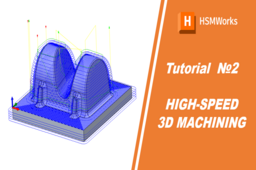
In this tutorial you will learn how to machine the part above on a high speed machine tool through the following steps: ▸Creating a Tool Library ▸Roughing: Adaptive Clearing ▸Rest Roughing: Pocket ▸Contour Machining ▸Scallop Machining ▸Scallop ▸Horizontal ▸Pencil Milling ▸Collapsed Pencil ▸Post Processing Before proceeding, open the part Tutorial2.SLDPRT into HSMWorks. The files used in this manual can be found in the examples folder in the folder where HSMWorks is installed. Typically, this is something like C:\Program Files\HSMWorks\examples\ 𝐃𝐢𝐬𝐜𝐥𝐚𝐢𝐦𝐞𝐫: This tutorial is a representation of the original Help tutorial with the HSMWorks software suite. This guide is intended for educational purposes and to make the features and tools of HSMWorks more accessible to the general public. More information about purchasing, installing, and using HSMWorks can be found on the official website: https://www.autodesk.com/products/hsmworks
hsmworks
3d machining
nc
solidworks
milling
cam
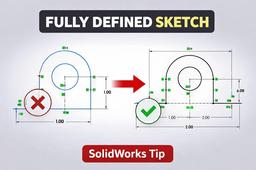
SolidWorks - Come sbloccare uno schizzo in 30 secondi
MechVision3D
in
Design & CAD
1
0
Beginner
La maggior parte degli errori negli assiemi nasce da schizzi sotto-definiti. Quote che saltano, feature che falliscono, assiemi instabili sono imputabili a schizzi non totalmente definiti. Questo tutorial elimina il problema alla radice.
SOLIDWORKS
beginner
cad-tips
parametric-design
fully-defined
sketch
solidworks
Onshape for Absolute Beginners: Part 2
Engineering Juice
in
Modeling
1
0
Beginner
https://youtu.be/CbCQCB2ts28
Onshape
onshape beginner
onshape
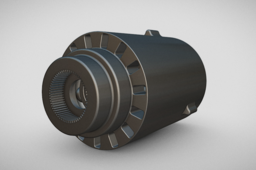
DC MOTOR || ROTOR || BALL BEARING || PART MODELING || 3D MODELING || ASSEMBLY || NX SIEMENS
VR DESIGNER
in
Modeling
2
0
Intermediate
Welcome to this detailed CAD tutorial where I walk you through the complete process of 3D modeling a DC Motor in Siemens NX. In this video, you’ll learn how to create each component with precision, apply the right constraints, and assemble everything into a fully functional motor model. Whether you’re a mechanical engineering student, CAD enthusiast, or NX Siemens learner, this tutorial will help you improve your modeling skills and understand the workflow for designing electromechanical components. 📌 What You’ll Learn in This Video: - Sketching the rotor, stator, shaft & housing - Creating complex features with NX modeling tools - Using Boolean operations & parametric edits - Assembling all components into a complete DC motor - Adding exploded views & rendered visuals If you find this helpful, don’t forget to Like, Share & Subscribe for more CAD modeling tutorials and engineering content! 📐 Software Used: Siemens NX (Unigraphics NX) 🎯 Skill Level: Beginner to Intermediate 🎓 Ideal For: Engineering Students | CAD Designers | Product Developers
NX Unigraphics
electrical component
3d cad tutorial
automotive part tutorial
assembly tutorial
dc motor tutorial
cad tutorial
nx tutorial
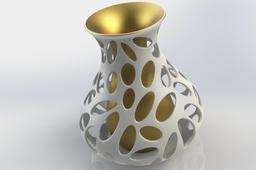
Solidworks: vase of flowers (10)
Huy Pham
in
Modeling
1
0
Beginner
I hope this video useful for everyone want to become professional design of engineer I have a channel in youtube about CAD 3D, I hope this useful for you: https://www.youtube.com/channel/UCw_Zp8rsvtI01SnhkM_4FAw
SOLIDWORKS
vase
tutorial
solidworks
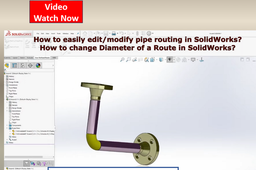
Master #solidworks Routing: How to Change Route Diameter Fast
Peter CAD
in
Modeling
1
0
Beginner
How to change Diameter of a Route in SolidWorks? How to easily edit modify pipe routing in SolidWorks? solidworks routing You can change the diameter and specifications of a pipe or tube route. The Change Route Property Manager appears so you can select new configurations for all the elements (flanges, elbows, pipe, and so on) in the route.
SOLIDWORKS
piping design
solidworks for beginners
solidworks tutorial
start a route
solidworks
1
2
3
4