Learn about the GrabCAD Platform
Get to know GrabCAD as an open software platform for Additive Manufacturing
Visit our new homepage
Home
Control
Shop
Streamline Pro
Partner Program
Print
Community
Log in
Library
Challenges
Groups
Questions
Tutorials
Engineers
Blog
Log in
GrabCAD Tutorials
staff
Follow
18
followers
United States
Tutorials
About
Models
0
Tutorials
31
More
Followers
18
Following
1
Likes
1
Following
1
Followers
18
Likes
1
Tutorials
Sort by:
Recent
Recent
Most liked
Most viewed
Most commented
How to Paint an FDM Printed Part
GrabCAD Tutorials
in
3D Printing
12
2
Intermediate
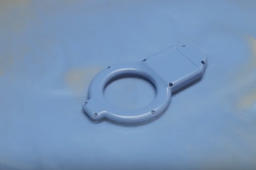
This tutorial will teach you how to paint FDM parts. There are many reasons to paint 3D printed parts, whether it’s for UV protection, sealing or just to make them aesthetically pleasing.
printing
3d
post-processing
painting
fdm
Tips for Designing FDM Composite Tooling
GrabCAD Tutorials
in
Tooling
2
1
Beginner
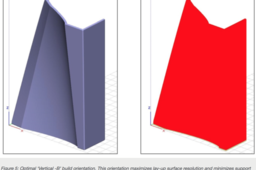
Regardless of the general FDM tool style you are using, designers should strive to minimize material use while optimizing print time and quality for the desired application. The following are general tips for cost-effective design of FDM. The following tips and tricks are brought to you by Stratasys.com:
printing
3d
fdm
composites
How to Create a Revolved Surface in SOLIDWORKS
GrabCAD Tutorials
in
Modeling
2
0
Beginner
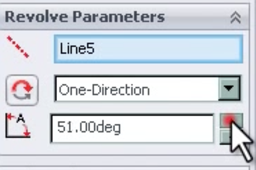
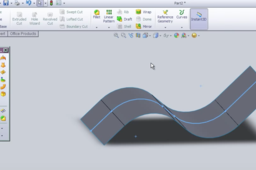
This tutorial will demonstrate how to create a revolved surface using SOLIDWORKS
SOLIDWORKS
How to FDM Print for Part Sliding Clearance
GrabCAD Tutorials
in
Assemblies
13
4
Intermediate
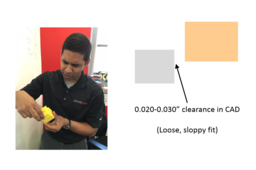
If you are 3D printing parts that have to fit/slide together after printing, you will need to put some sort of clearance between those parts in your CAD system. A good starting place is a clearance 2x the layer height you are going to print at, but you should make a few smaller test prints at different clearances to see if the 2x layer height rule holds for your particular situation and orientation. Have fun and happy printing!
GrabCAD Print
sliding
clearance
printing
3d
fdm
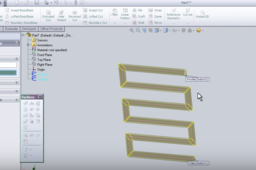
Swept Surface in SOLIDWORKS
GrabCAD Tutorials
in
Modeling
2
0
Beginner
In this tutorial, you will learn how to create a swept surface in SOLIDWORKS
SOLIDWORKS
surfaces
solidworks
Extruded Surface in SOLIDWORKS
GrabCAD Tutorials
in
Modeling
4
0
Beginner
This tutorial shows how to create an extruded surface in SOLIDWORKS
SOLIDWORKS
surfacing
solidworks
Using Text in SOLIDWORKS
GrabCAD Tutorials
in
Modeling
8
1
Beginner
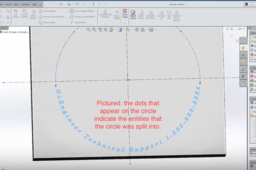
A tutorial about how to add, modify and transfer text in SOLIDWORKS
SOLIDWORKS
text
solidworks
How to calibrate Fortus 360MC & Fortus 400MC systems
GrabCAD Tutorials
in
Design & CAD
1
0
Intermediate
Process
Other
400mc
360mc
fortus
calibrate
How to build complete process assemblies
GrabCAD Tutorials
in
Design & CAD
0
0
Intermediate
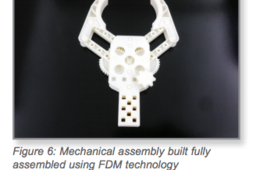
1. OPTIONS 1.1. Orienting Parts for Assemblies Before making design alterations it is important to have a strategy for the build orientation. Orientation of the mating components can affect the fit of the assembly and will determine the necessary clearances.
Other
printing
3d
clearance
orienting
fdm
assemblies
assembly
How to increase transmissivity of FDM parts (part translucency)
GrabCAD Tutorials
in
Design & CAD
0
0
Intermediate
To increase transmissivity of FDM parts:
Other
How to 3D print with Digital ABS
GrabCAD Tutorials
in
Design & CAD
0
1
Intermediate
PRINTING RECOMMENDATIONS AND TIPS, PROCESS, AND TOOLS & SUPPLIES.
Other
polyjet
connex
objet
studio
abs
digital
printing
3d
How to media blast FDM parts
GrabCAD Tutorials
in
Design & CAD
0
0
Intermediate
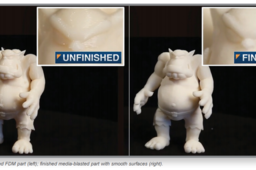
Common applications where media blasting is applicable: • Smoothing and polishing for: - Concept models - Prototypes - End-use parts • Surface preparation such as texturing and etching for: - Painting - Electroplating - Mold masters
Other
finishing
post-processing
fdm
media
blasting
printing
blast
3d
How to print flexible parts with multiple materials on Connex 3D printers?
GrabCAD Tutorials
in
Design & CAD
1
0
Intermediate
RECOMMENDATIONS
Other
flexture
connex
stratasys
flexible
print
parts
3d
How to convert a CAD file to an STL file?
GrabCAD Tutorials
in
Design & CAD
2
1
Intermediate
STL is the standard file type used by most or all rapid prototyping systems. A STL is a triangulated representation of a 3D CAD model (figure 1). The triangulation of a surface will cause faceting of the 3D model. The parameters used for outputting a STL will affect how much faceting occurs (figure 2 and 3). You cannot build the model any better or smoother than the STL file, so if the STL is coarse and faceted, that is what you can expect in the final model. In the CAD package, when exporting to STL, you may see parameters for chord height, deviation, angle tolerance, or something similar. These are the parameters that affect the faceting of the STL.You don’t necessarily want to go too small. The finer the STL the larger the file is in size, which will affect processing time in Insight as well as build time. Below is some information found on the Internet regarding exporting to STL from various CAD packages.
AutoCAD
think3
deskartes-3d
datacad
cadkey
expert
studio
data
rhinoceros
revit
pro
stl
autodesk
sketchup
wildfire
solidedge
max
ironcad
inventor
cad
desktop
3d
mechanical
autocad
solidworks
alibre
nx
unigraphics
How to convert 2D BMP images to 3D STLs?
GrabCAD Tutorials
in
Design & CAD
1
0
Intermediate
The basic principle is to take a regular 2D image (in BMP format) and translate the image’s gray shades into a 3D height map (Figures 1 and 2). The two-dimensional array (i.e. color) of each element is interpreted as a height value in order to store information on the height of each point. For example; the white points are flat, the gray points are higher and the black points are the highest. The following steps in this procedure were accomplished using Microsoft® Paint image viewing software and Materialise® Magics STL editing software, and make reference to the menu options in those applications. Other similar software programs may be used to accomplish this procedure.
Other
magics
prep
bmp
height
stl
map
printing
2d
print
3d
1
2