Learn about the GrabCAD Platform
Get to know GrabCAD as an open software platform for Additive Manufacturing
Visit our new homepage
Home
Control
Shop
Streamline Pro
Partner Program
Print
Community
Log in
Library
Challenges
Groups
Questions
Tutorials
Engineers
Blog
Log in
BENJAMIN OKELLO
Attitude determines altitude.
Follow
Hire me
196
followers
Kampala, Uganda
Tutorials
About
Models
102
Tutorials
10
More
Followers
196
Following
44
Likes
576
Following
44
Followers
196
Likes
576
Tutorials
Sort by:
Recent
Recent
Most liked
Most viewed
Most commented
Isometric model
BENJAMIN OKELLO
in
Modeling
0
0
Beginner
This tutorial demonstrates how to draw an isometric model in Solidworks utilizing cut and boss extrudes. https://dai.ly/k6jt5eAE9fugLAAiG2a
SOLIDWORKS
reference geometry
right plane
front plane
boss extrude
cut extrude
exercise
isometric
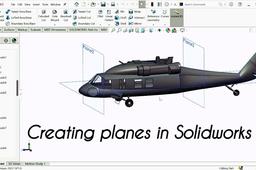
Creating new planes in Solidworks
BENJAMIN OKELLO
in
Modeling
8
0
Beginner
To create a new plane in SolidWorks, you can follow these steps: @pipinosymmetric 1. Open the part or assembly file where you want to create a new plane. 2. Click on the "Plane" command from the "Reference Geometry" toolbar. 3. In the "Plane" property manager, select a reference plane or planar face to which the new plane will be parallel or perpendicular. 4. Specify the distance or offset value for the new plane. 5. Click "OK" to create the new plane. You can also create a new plane using the "Sketch" command: 1. Open the part or assembly file where you want to create a new plane. 2. Click on the "Sketch" command from the toolbar. 3. Draw a sketch on a planar face or plane where you want to create the new plane. 4. Click on the "Plane" command from the "Reference Geometry" toolbar. 5. In the "Plane" property manager, select the sketch entity that you just created as the reference for the new plane. 6. Specify the distance or offset value for the new plane. 7. Click "OK" to create the new plane. There are also several other methods to create a new plane in SolidWorks, such as using the "Reference Plane" command, the "Convert Entities" command, or the "3D Sketch" command.
SOLIDWORKS
modeling
3d cad
beginner
solidworks tutorial
creating new planes
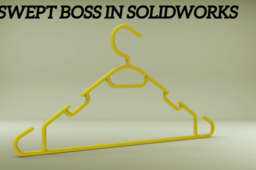
How to use swept boss in Solidworks
BENJAMIN OKELLO
in
Modeling
4
0
Beginner
Here are the steps to create a swept boss in SolidWorks: 1. Start a new sketch on the plane where you want to create the swept boss. 2. Create a profile that you want to sweep along a path. The profile can be a closed or open sketch entity, such as a circle, rectangle, or spline. 3. Start another sketch on a plane perpendicular to the path of the swept boss. 4. Draw a path for the swept boss. The path can be a sketch entity, such as a line or spline, or a 3D sketch. 5. Click on the "Swept Boss/Base" command from the "Features" toolbar. 6. In the "Swept Boss/Base" property manager, select the sketch profile and path that you created in steps 2-4. 7. Choose the type of sweep you want to create: "Thin Feature," "Mid-Plane," or "Offset From Surface." 8. Specify any additional options for the swept boss, such as twist or draft angles. 9. Click "OK" to create the swept boss feature. After creating the swept boss feature, you can modify it using the feature manager design tree and change its dimensions or other parameters.
SOLIDWORKS
parameters
3d cad
tutorial
how-to
beginner
solidworks
swept boss
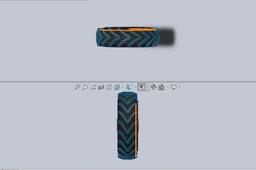
How to model a tractor tyre in solidworks.
BENJAMIN OKELLO
in
Modeling
0
0
Intermediate
In this video, you will get the basics of modeling a tractor tire/tyre in solidworks. https://www.youtube.com/watch?v=ekqhmMzxoJI&t=24s
SOLIDWORKS
revolve boss
rubber
tyre
tractor
SolidWorks practice tutorial
BENJAMIN OKELLO
in
Modeling
0
0
Beginner
This tutorial illustrates how to add material and colour to a model/design in SolidWorks. In addition, also how to use chamfer, fillet, extruded boss/base in SolidWorks.
SOLIDWORKS
boss
cut
extruded
dimensions
colour
materials
fillet
chamfer
SolidWorks Revolve boss/base
BENJAMIN OKELLO
in
Modeling
0
0
Beginner
https://youtu.be/tGY7uiEJbrI Revolve boss/base example in SolidWorks.
SOLIDWORKS
cad
training
sketch
beginner
3d
modeling
boss-base
revolve
solidworks
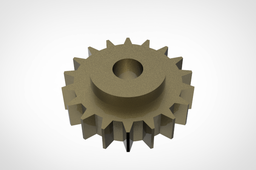
How to design a spur gear in Solid Works.
BENJAMIN OKELLO
in
Dimensioning / Tolerancing
2
1
Intermediate
This tutorial demonstrates how to design a spur gear in Solid Works.
SOLIDWORKS
hub
module
teeth
mechanism
mechanical
gear
spur
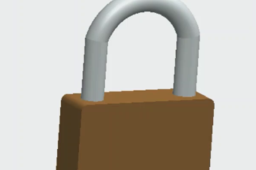
How to draw a padlock in Solid Works
BENJAMIN OKELLO
in
Modeling
0
1
Intermediate
This video assists a beginner how to draw a padlock in Solid Works.
SOLIDWORKS
strength
industrial
household
security
steel
locks
keys
padloc
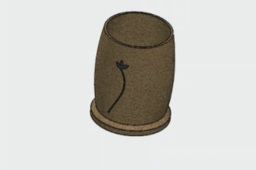
How to draw a flower vase in Solid Works
BENJAMIN OKELLO
in
Modeling
1
0
Intermediate
This tutorial shows how to draw a flower vase in Solid Works.
SOLIDWORKS
household
plastic
ceramic
decoration
interior
vase
flower
How to draw a screw driver in Solid Works
BENJAMIN OKELLO
in
Modeling
1
0
Intermediate
This tutorial shows how to draw a screw driver in Solid Works.
SOLIDWORKS
electrical
mechanical
tool
hand
head
flat
driver
screw