Learn about the GrabCAD Platform
Get to know GrabCAD as an open software platform for Additive Manufacturing
Visit our new homepage
Home
Control
Shop
Streamline Pro
Partner Program
Print
Community
Log in
Library
Challenges
Groups
Questions
Tutorials
Engineers
Blog
Log in
3D Comparison
Industrial Design Engineer
Follow
216
followers
Romania
Tutorials
About
Models
66
Tutorials
129
More
Followers
216
Following
16
Likes
6
Following
16
Followers
216
Likes
6
Tutorials
Sort by:
Recent
Recent
Most liked
Most viewed
Most commented
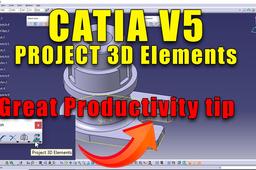
How to project 3D elements in #catiav5
3D Comparison
in
Modeling
0
0
Beginner
This method offers more control and flexibility for specific projection needs.
CATIA
copy
rapid
sketch
catia v5
project 3d elements
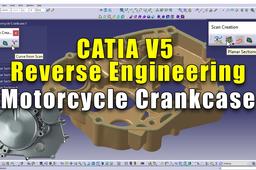
CATIA V5 - Reverse Engineering (Curve from 3D scan)
3D Comparison
in
Modeling
0
0
Intermediate
This is an overview of the reverse engineering workflow in CATIA V5.
CATIA
curve from 3d scan
catia v5
reverse engineering
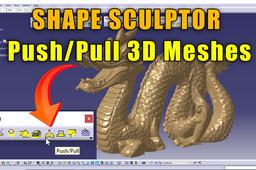
CATIA V5 - how to Push and Pull 3D meshes
3D Comparison
in
Modeling
0
0
Intermediate
These tools are not very known by CATIA V5 users, therefore I decided to make a series about Shape Sculptor.
CATIA
catia
3d meshes
curves
push and pull
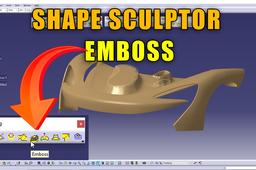
CATIA V5 - how to Emboss Meshes
3D Comparison
in
Modeling
1
0
Intermediate
According to Gemini (Google AI assistant) you can't emboss a mesh in CATIA V5. Actually you can but very few people know about Shape Sculptor workbench and the documentation is very limited.
CATIA
deform surface
catia v5
meshes
emboss
3d scans
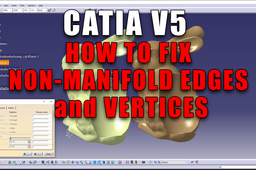
How to Fix non manifold vertices/edges
3D Comparison
in
Modeling
0
0
Intermediate
Fixing non-manifold vertices and edges is a crucial part of using the Mesh Cleaner in CATIA V5 Digitized Shape Editor. Here's a detailed guide:
CATIA
digitized shape editor
files
import
stl
non manifold edges
non manifold vertices
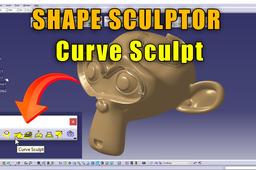
How to use Curve Sculpt in CATIA V5
3D Comparison
in
Modeling
0
0
Intermediate
Shape Sculptor workbench that allow you to manipulate and sculpt surfaces using curves.
CATIA
3d scan
stl files
import mesh
shape sculptor
curve sculpt
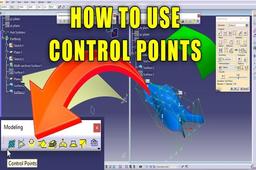
How to use - Control Points - Shape Sculptor - CATIA V5
3D Comparison
in
Modeling
2
0
Intermediate
Control points define the shape and form of your mesh in Shape Sculptor. By manipulating these points, you can sculpt, deform, and refine your model. Each point influences the surrounding area of the mesh.
CATIA
refine
reshape
change
deform
surface
control points
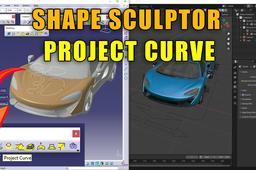
How to Project Curve in CATIA V5
3D Comparison
in
Modeling
0
0
Intermediate
The case study makes use of a McLaren 520S available for free using BlenderKit
CATIA
generative shape design
sculptor
mesh
shape
catia v5
project curve
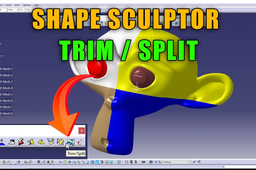
Trimming and Splitting Meshes - #catiav5
3D Comparison
in
Modeling
0
0
Beginner
Shape Sculptor in CATIA V5 offers various tools for manipulating meshes, including trimming and splitting.
CATIA
sculptor
shape
mesh
split
trim
catia v5
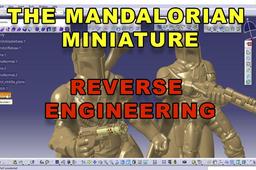
CATIA V5 - The Mandalorian Miniature - Reverse Engineering
3D Comparison
in
Modeling
0
0
Expert
The workflow makes use the following models available at: 3D model available at: https://www.thingiverse.com/thing:3989757
CATIA
reconstruction
quick
surface
gsd
stl
engineering
reverse
catia v5
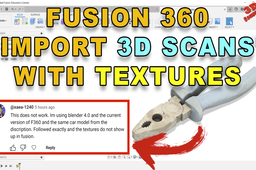
Fusion 360 - Import 3D scans with textures
3D Comparison
in
Translations
0
0
Intermediate
Importing 3D scans with textures into Fusion 360 is not a straightforward process. Depending on the file format there are additional steps that need to be done regarding the texture. Usually the best solution is to retexture the model within Blender.
Fusion 360
obj
files
import
load
texture
photogrammetry
3d scan
fusion 360
CATIA V5 - Import 3D Google Maps Tiles
3D Comparison
in
Modeling
0
0
Beginner
The workflow makes use of Blender and Blosm add-on. The add-on can be downloaded for free at: https://github.com/vvoovv/blosm
CATIA
tower
eiffel
mesh
stl
blender
3d tiles
google maps
CATIA V5 - Shape Sculptor - Activate and Activate All
3D Comparison
in
Modeling
0
0
Beginner
The Activate and Activate All commands in CATIA V5 - Shape Sculptor are used to select polygonal meshes. The Activate command selects a single polygonal mesh, while the Activate All command selects all of the polygonal meshes in the current selection set.
CATIA
stl
catia v5
sculptor
shape
polygonal
mesh
activate
CATIA V5 - Shape Sculptor - Flood Select and Invert Select
3D Comparison
in
Modeling
0
0
Beginner
Flood Select and Invert Select are two important tools in CATIA V5's Shape Sculptor feature. Flood Select allows you to select all the entities within a specified area, regardless of their type or geometry. This can be a useful tool for quickly selecting a large number of entities, such as all the faces of a solid or all the edges of a wireframe model.
CATIA
invert selection
catia v5
sculptor
shape
select
flood
CATIA V5 - Shape Sculptor - Hole Select
3D Comparison
in
Modeling
0
0
Beginner
The Shape Sculptor is a tool in CATIA V5 that can be used to create and edit polygonal models. It is a powerful tool that can be used to quickly add details and new features to a polygonal model. One of the features of the Shape Sculptor is the "Hole Select" tool. This tool can be used to select all of the holes in a polygonal model.
CATIA
mesh
catia v5
sculptor
shape
stl
select
hole
1
2
3
4
…
9